
How to Use Canva Content Calendar for Social Media Planning
Master social media planning with Canva Content Calendar to organize posts, streamline scheduling, and boost your online presence efficiently.

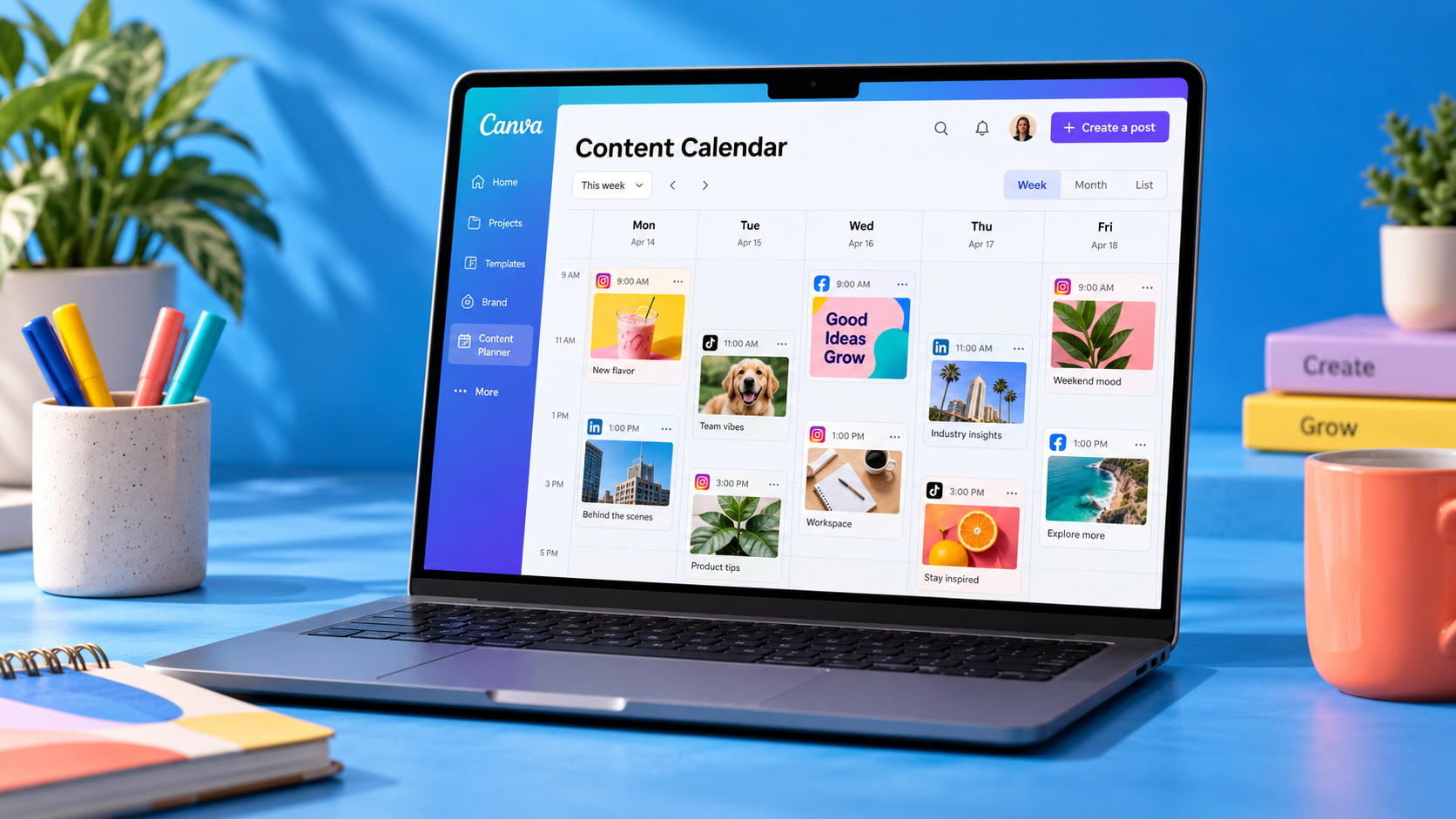
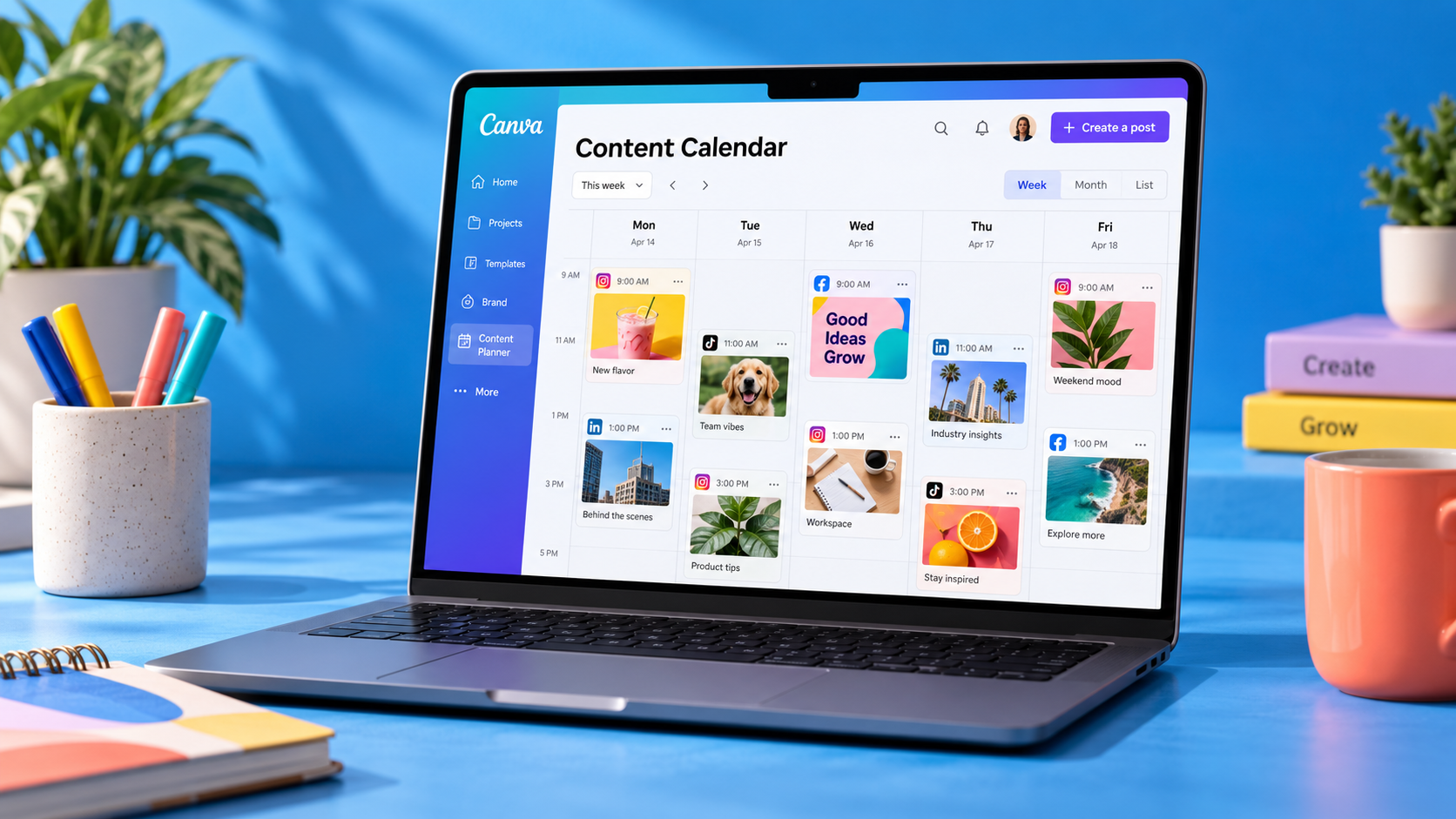
A Canva content calendar helps you organize campaign ideas, design social media posts, schedule approved content and maintain a consistent publishing rhythm from one visual workspace. To use it effectively, choose or build a Canva calendar template, map your goals and content pillars, assign posts to specific dates, create the required assets and then schedule eligible posts through Canva’s Content Planner. The result is a practical content calendar for social media that connects strategy, production and publishing.
What Is the Canva Content Calendar? | How to Set Up a Canva Calendar Template | Build a Social Media Strategy Before Filling the Calendar | Plan Posts and Campaigns in Canva Step by Step | Create Consistent Social Media Assets Efficiently | Schedule Content with Canva’s Social Media Planner | Collaborate, Approve and Maintain the Calendar | Measure Results and Improve Future Calendars | Common Mistakes to Avoid | Frequently Asked Questions
What Is the Canva Content Calendar?
The Canva content calendar is a visual planning system for organizing and scheduling social media content. Depending on your workflow and Canva plan, you can use calendar templates to map upcoming posts and Canva’s scheduling features to publish completed designs to supported social networks. Together, these tools can function as a lightweight Canva social media planner.
It is useful to distinguish between planning and scheduling. A calendar template shows what you intend to publish, including campaign themes, formats, deadlines and responsibilities. The scheduling interface handles approved posts that are ready to go live. Strong workflows use both: the planning calendar provides context, while the scheduler turns decisions into scheduled content.
Canva is especially helpful for visual teams because the plan and the creative assets can live close together. Instead of listing a post in a spreadsheet and searching for its design elsewhere, marketers can connect calendar entries with Canva files, campaign folders, brand assets and captions. This reduces handoff friction and makes it easier to see whether an idea is still being developed or is genuinely ready to publish.
However, Canva should not be treated as a substitute for strategy. An attractive calendar will not fix vague goals, repetitive topics or content that does not serve its audience. The tool becomes valuable when it supports a clear marketing system.
How to Set Up a Canva Calendar Template
Begin by searching Canva’s template library for terms such as “social media content calendar,” “monthly content planner” or “weekly social media planner.” Select a layout that matches the level of detail your team needs. A solo creator may prefer a simple monthly grid, while an agency or multi-channel marketing team may need a weekly table with fields for platform, owner, status and campaign.
Before adding post ideas, customize the Canva calendar template around your workflow. Replace decorative labels with operational information. Useful fields include publication date, channel, content pillar, format, campaign, call to action, asset link, owner, approval status and publishing status. If you publish across multiple time zones, add the intended publication time and time zone as separate fields.
Use color deliberately. For example, blue could represent educational posts, coral could identify promotional content, green could mark community content and yellow could indicate behind-the-scenes material. Alternatively, use colors for workflow stages such as idea, in production, under review, approved and scheduled. Avoid using one color system for both content categories and statuses, because the calendar quickly becomes difficult to interpret.
Add a small legend and retain it on every page. If you create one page per month, duplicate the approved master page instead of rebuilding it. This preserves spacing, typography, labels and status conventions. Lock recurring design elements so collaborators do not accidentally move the calendar structure while editing individual entries.
Finally, make the template accessible. Use readable type sizes, sufficient contrast and text labels alongside colors. A well-designed calendar should remain understandable when exported, viewed on a small screen or opened by someone who did not build it.
Build a Social Media Strategy Before Filling the Calendar
A useful content calendar for social media begins with business objectives rather than empty dates. Decide what the content must accomplish during the planning period. Typical goals include increasing brand awareness, generating leads, driving product discovery, improving customer retention or building an engaged community.
Translate each objective into measurable indicators. If the goal is awareness, track reach, video views and profile visits. For engagement, monitor meaningful comments, shares and saves rather than relying only on likes. For conversion campaigns, define the relevant landing-page visits, sign-ups, qualified inquiries or sales.
Next, choose three to five content pillars. These are repeatable subject areas that connect audience needs with your expertise. A fitness coach might use technique tutorials, habit building, client stories and service offers. A software company could focus on product education, industry insights, customer workflows and company culture.
Assign each pillar a practical role in the customer journey. Educational posts may attract new viewers, case studies can build trust and demonstrations can help prospects evaluate an offer. This prevents the calendar from becoming a collection of disconnected ideas.
Then establish a realistic publishing cadence for each channel. Start with the amount of quality content your team can sustain. Three strong posts per week are generally more useful than seven rushed posts followed by a month of silence. Account for scripting, filming, editing, stakeholder review and platform-specific adaptation before committing to a schedule.
Include recurring series to make planning faster. A weekly expert tip, monthly customer story or Friday question can provide structure without making the feed feel repetitive. Leave some open space for timely content, audience questions and reactive posts. A calendar should guide execution while retaining enough flexibility for relevant opportunities.

Plan Posts and Campaigns in Canva Step by Step
Start with major dates: product launches, promotions, webinars, holidays, events and seasonal moments that genuinely matter to your audience. Work backward from each deadline. If a campaign launches on June 20, the calendar might include a teaser two weeks earlier, an educational post the following week, a launch announcement, a demonstration and a reminder before the offer closes.
Add organic content around these anchor campaigns. Balance promotional messages with educational, entertaining, inspirational and community-focused posts. The exact ratio should reflect your goals and audience, but every calendar should answer an important question: why would someone follow this account between promotions?
For every planned post, record a concise creative brief. Include the target audience, primary message, content format, opening hook, call to action and required assets. A calendar entry such as “Instagram Reel: three reporting mistakes; hook: your dashboard may be hiding the real result; CTA: save the checklist” is far more actionable than “make analytics Reel.”
Adapt ideas for each platform instead of publishing identical assets everywhere. One campaign insight could become a short vertical video for Instagram or TikTok, a document-style post for LinkedIn, a concise thread for a text-led platform and a longer tutorial for YouTube. Keep the central message consistent while changing the hook, dimensions, pacing, caption and call to action.
Build production time into the plan. Add internal milestones for the first draft, design review, copy approval and final scheduling. If several posts require one filming session, group them together. Batch production reduces setup time and helps creators maintain visual continuity across a series.
Use clear file names such as “2026-06-20_ProductLaunch_Instagram_Reel_v2” rather than generic labels like “new design.” Organize files by campaign or month, and keep final assets separate from drafts. These habits become increasingly important as the Canva social media planner grows beyond a single campaign.


Create Consistent Social Media Assets Efficiently
Once the calendar is mapped, build a small system of reusable content templates. Create master layouts for recurring formats such as quote graphics, carousels, announcements, testimonials, tutorials and video covers. Each template should preserve brand fundamentals while leaving enough flexibility to suit different topics.
Use Canva’s brand features, where available, to centralize approved colors, logos, fonts and imagery. This reduces inconsistent design choices and makes it easier for collaborators to produce content without recreating brand decisions. Still, templates should not make every post look identical. Rotate compositions, image styles and visual emphasis while retaining recognizable brand cues.
Design for the platform and placement. A square feed graphic, a vertical story and a video thumbnail serve different viewing behaviors. Check that critical text remains visible within safe areas and that mobile viewers can understand the message without zooming. Keep on-image copy concise; place supporting details in the caption or subsequent carousel slides.
For videos, make the first seconds useful. Begin with a clear problem, result, question or visual change. Add readable captions because many viewers encounter content without sound. Review timing carefully, and avoid transitions or decorative motion that distract from the core idea.
Batch similar tasks whenever possible. Write several hooks in one session, design a group of carousel covers together and record multiple short videos while the equipment is set up. Batching improves speed because the team remains in the same creative mode instead of repeatedly switching between planning, writing, recording and editing.
Schedule Content with Canva’s Social Media Planner
When an asset is approved, use Canva’s available scheduling or Content Planner tools to select the destination channel, publication date and time. Connect only the social accounts your team is authorized to manage, and confirm the correct account before scheduling. Interface labels and supported channels can change, so follow the options shown in your current Canva workspace.
Write the caption for the platform rather than copying one universal version. Check the opening line, mentions, links, hashtags, line breaks and call to action. Preview the post where possible, and verify that the correct page, profile or business account is selected.
Do not schedule a post merely because its design is finished. Use a pre-publishing checklist that confirms the copy is approved, claims are accurate, links work, names are spelled correctly, the asset has the proper dimensions and necessary usage rights are documented. For time-sensitive offers, verify dates, prices and availability immediately before scheduling.
Schedule evergreen content in batches, but review the queue regularly. News events, inventory changes or campaign updates can make an otherwise harmless post inappropriate. Assign one person to perform a weekly calendar check and a shorter review before major launches.
Some content may still require native publishing. Platform-specific features such as certain interactive elements, sounds, stickers, product tags or collaboration settings may not be available through every third-party scheduler. Mark these posts clearly in the calendar and assign a responsible owner so they are not mistaken for automated posts.
Collaborate, Approve and Maintain the Calendar
A calendar becomes a team tool only when ownership is explicit. Assign one person to every post, even if several contributors are involved. The owner is responsible for moving the item through production, gathering feedback and confirming that it has been scheduled or published.
Keep statuses simple and mutually exclusive. A practical sequence is idea, brief ready, in production, in review, approved, scheduled, published and repurpose. If your process needs numerous specialized labels, consider whether the calendar is being asked to function as a full project-management platform.
Set approval deadlines that leave enough time for corrections. Last-minute reviews often produce rushed copy, inconsistent creative work and scheduling errors. Stakeholders should provide consolidated feedback whenever possible. Conflicting comments from several reviewers can delay a post even when the requested changes are minor.
Protect the master Canva calendar template by limiting who can alter its structure. Contributors can update assigned entries, while a content lead maintains formatting, naming conventions and campaign organization. Duplicate pages before making major structural changes so the team can recover a working version if necessary.
Run a brief weekly review. Confirm what was published, identify delayed assets, check the next seven to fourteen days and resolve approval bottlenecks. At the end of each month or campaign, archive completed work and duplicate the template for the next planning cycle.
Measure Results and Improve Future Calendars
Planning is incomplete without analysis. Add performance notes to published posts or maintain a linked reporting view. Record metrics that match the original objective rather than collecting every number available. A conversion post should be judged primarily by actions and revenue contribution, while an educational post may be evaluated through retention, saves and qualified engagement.
Compare results by content pillar, format, platform, hook and call to action. Look for patterns across several posts instead of treating one viral result as a universal formula. A successful topic may deserve a follow-up, while a strong idea with weak execution may need a better opening, format or distribution plan.
Use the findings to update the next Canva content calendar. Increase the frequency of formats that repeatedly support business goals, refine underperforming series and retire activities that consume disproportionate effort. Keep a section for proven topics that can be refreshed, expanded or adapted for another platform.
Also assess workflow performance. Track missed deadlines, excessive revision rounds and posts that were approved but never scheduled. These operational signals reveal whether the calendar is realistic. Improving production reliability can have a greater impact than simply adding more posts.
Common Mistakes to Avoid
The first mistake is filling every date before clarifying the strategy. A busy calendar can create the appearance of productivity while producing little meaningful value. Every scheduled item should support an audience need, a campaign goal or a deliberate test.
Another mistake is overdesigning the planner. Complex layouts may look impressive but become slow to update. Prioritize clarity, ownership and deadlines over decoration. The best calendar is the one the team consistently uses.
A third mistake is ignoring production capacity. If every post requires original photography, detailed animation and several approvals, the plan may collapse. Mix high-effort flagship content with efficient recurring formats, repurposed insights and community posts.
Finally, avoid treating automation as complete social media management. Scheduling saves time, but marketers must still respond to comments, monitor context, evaluate performance and participate in relevant conversations. The calendar organizes the work; it does not replace active community management.
Frequently Asked Questions
Does Canva have a content calendar for social media?
Yes. Canva can support social media planning through customizable calendar templates and, depending on the account and available features, scheduling tools for supported social platforms. Use templates for campaign planning and the scheduling interface for approved content that is ready to publish.
How do I make a social media content calendar in Canva?
Choose a weekly or monthly Canva calendar template, add fields for dates, platforms, formats, content pillars, owners and statuses, then enter campaign milestones and recurring posts. Create or link the required assets, move each item through review and schedule completed posts when appropriate.
Can Canva automatically publish social media posts?
Canva can schedule and publish certain content to supported connected accounts, subject to current platform integrations and account capabilities. Some platform-native features may still require manual publishing, so confirm the options available for each channel before relying on automation.
What should a Canva social media planner include?
It should include the publication date and time, channel, campaign, content pillar, format, creative brief, caption status, asset location, owner, approval status and publishing status. Adding performance notes after publication turns the calendar into a learning system rather than a static posting schedule.