
Later Social Media Planner: Organize Your Posts with Ease
Later Social Media Planner helps you schedule and organize your posts efficiently, making social media management simpler and more effective.


The Later social media planner helps marketers, creators, and small teams organize content, preview upcoming posts, and schedule publishing from one visual workspace. By combining a cross-platform calendar, media library, post builder, Instagram feed preview, and planning tools, Later replaces scattered spreadsheets and last-minute reminders with a repeatable content workflow. This guide explains how to set it up, manage your calendar, organize creative assets, and turn content ideas into consistently published campaigns.
What Is the Later Social Media Planner? | How to Set Up Your Social Media Content Calendar | Organize Your Media Library Before You Schedule | Build and Schedule Posts Efficiently | Use the Visual Planner Without Sacrificing Strategy | Content Organization Tips for Teams and Creators | Measure Performance and Improve the Calendar | Frequently Asked Questions
What Is the Later Social Media Planner?
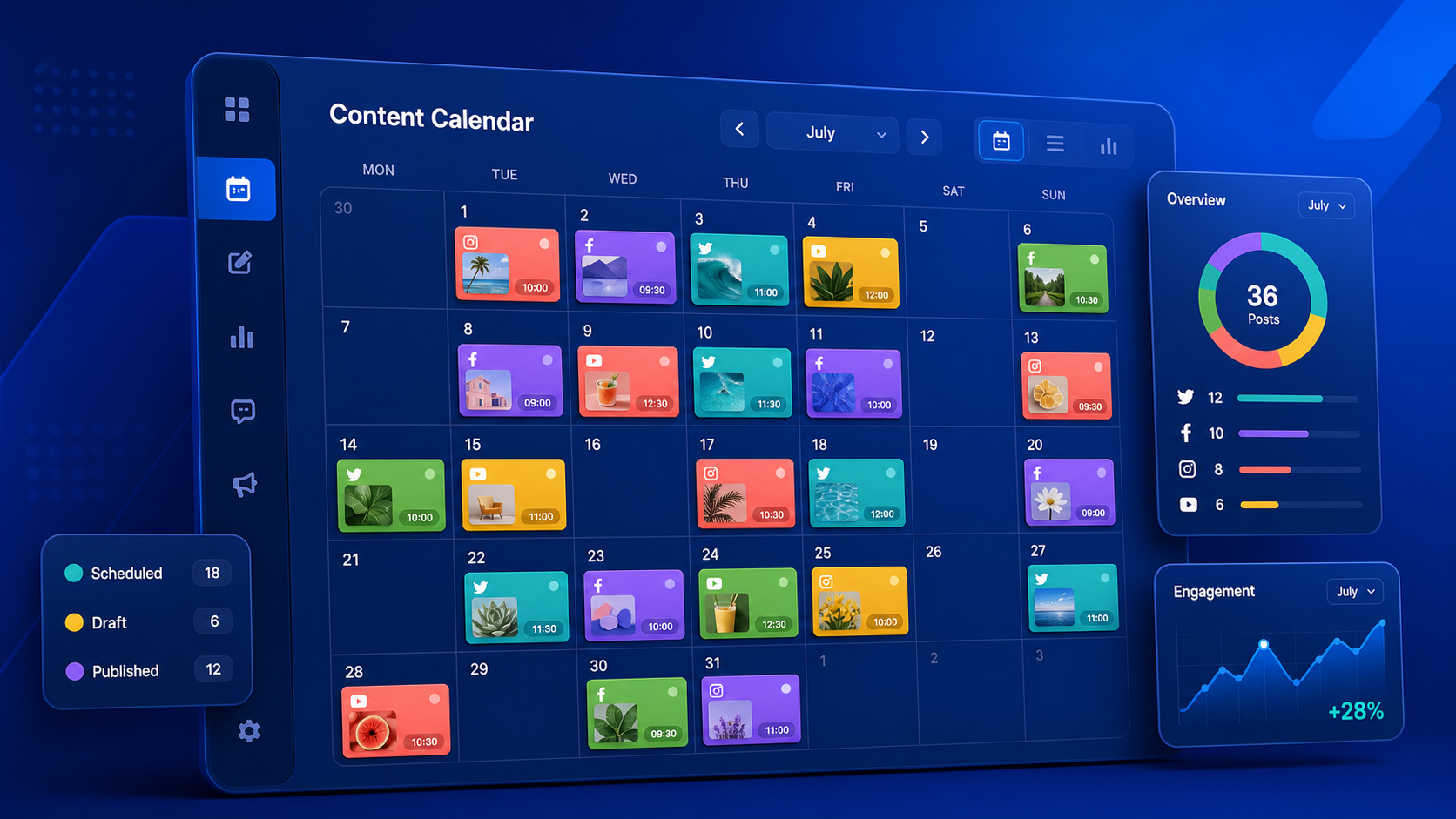
Later is a social media management platform built around visual planning and scheduling. Its central calendar gives you a clear view of what will be published, where it will appear, and when it is scheduled. Instead of opening every social network separately, you can prepare content for supported channels such as Instagram, TikTok, Facebook, Pinterest, YouTube, LinkedIn, and X from one workspace.
The platform is especially useful for visual brands, creators, ecommerce businesses, agencies, and marketing teams producing content in batches. Photos and videos can be stored in the Media Library, organized with labels and notes, and then dragged onto the calendar. Posts can be saved as drafts when an idea is incomplete, allowing strategists to reserve a concept before a designer, copywriter, or video editor delivers the final asset.
Later also addresses an important planning problem: a posting schedule is not the same as a content strategy. A list of dates may tell you when to publish, but it does not reveal whether your campaign has the right balance of educational, promotional, community, and entertaining content. The visual calendar makes that balance easier to inspect. A marketer can quickly identify an empty week, an excessive run of sales posts, or a launch campaign missing its supporting stories and reminders.
For Instagram-focused teams, the Visual Planner adds another layer of control. It previews upcoming content alongside the existing feed and lets users rearrange scheduled or draft posts before publication. This is valuable when color, composition, recurring formats, or grid continuity are part of the brand identity. However, visual harmony should support the communication goal rather than override it; a beautiful grid cannot compensate for repetitive or irrelevant posts.

How to Set Up Your Social Media Content Calendar
Begin by connecting only the profiles you actively manage. Adding every dormant account creates clutter and makes the calendar harder to scan. Confirm that each connection has the permissions required for scheduling, publishing, and analytics, and check whether particular formats need notification publishing instead of automatic publishing. Platform capabilities and API restrictions can change, so verify the publishing method while building each post.
Next, choose a planning horizon. A practical content calendar for social media usually works on three levels: a quarterly campaign view, a monthly editorial plan, and a weekly production schedule. The quarterly view captures launches, seasonal moments, partnerships, and business priorities. The monthly view assigns content themes and formats. The weekly view contains the finished assets, captions, links, approvals, and publishing times needed for execution.
Create recurring publishing slots based on realistic production capacity. Posting seven days a week is not useful if the team can only produce three strong pieces. Start with a sustainable baseline, such as three feed posts, two short-form videos, and several lightweight community updates each week. Later’s Quick Scheduling can help establish recurring time slots on compatible channels, while drag-and-drop scheduling makes it easier to place prepared media into those slots.
Do not treat recurring slots as permanent rules. Use audience data and Later’s posting-time recommendations, where available, as informed starting points. Then compare reach, watch time, clicks, saves, and conversions over several weeks. The best time to publish depends on the audience, content format, time zone, and objective. A business-to-business tutorial may perform well during working hours, while creator-led entertainment may gain more attention in the evening.
Give every planned post a strategic role. A simple framework is to label content according to one of four purposes:
- Attract: Discoverable videos, trends, collaborations, and searchable educational content.
- Build trust: Tutorials, case studies, demonstrations, testimonials, and behind-the-scenes posts.
- Convert: Product launches, offers, lead magnets, event promotions, and direct calls to action.
- Retain: Customer tips, community features, updates, conversations, and loyalty content.
Reviewing these roles in calendar view prevents a common mistake: filling the schedule without supporting the customer journey. If nearly every post asks for a purchase, add trust-building material. If the calendar contains only broad awareness content, introduce a clear path to an email signup, product page, consultation, or other meaningful next step.
Organize Your Media Library Before You Schedule
A well-organized asset library is the foundation of efficient scheduling. Uploading files without a naming or labeling system simply moves the mess from a desktop folder into another application. Before adding a large batch, define a compact taxonomy that reflects how your team searches for content. Useful labels might include campaign, product line, content pillar, format, creator, location, approval status, or expiration date.
Keep the system simple enough that everyone will use it. A small brand might rely on labels such as “education,” “product,” “community,” and “evergreen.” An agency may need a more detailed structure, such as “client-campaign-quarter-format.” Avoid creating near-duplicate labels like “tutorial,” “tips,” and “educational” unless those categories genuinely require different treatment.
Use Media Notes to store context with the asset. Notes can include a draft caption, required credit, campaign message, editing instruction, disclosure, destination link, or reminder to tag a collaborator. When notes follow the media into the scheduling process, the team spends less time searching through chat threads and documents. Generic copy can be drafted once and then adapted in the Post Builder for the voice, length, and conventions of each network.
Establish a clear lifecycle for every asset. A useful sequence is idea, requested, in production, ready for review, approved, scheduled, published, and reusable. Later’s labels and drafts can support parts of this process, while a project-management system may still be appropriate for complex production. The important point is that the calendar should show publishable truth: if a post appears ready, the team should be confident that its creative, copy, link, and approval are complete.
Separate evergreen assets from campaign-specific materials. Evergreen tutorials, product demonstrations, quotes, and testimonials may be reused or adapted later. Time-sensitive promotions should be labeled with an end date so an expired offer is never scheduled by mistake. Check usage filters before repeating an image, and maintain enough variation in framing, format, and message to avoid making the feed feel recycled.
Finally, create a weekly asset-maintenance habit. Archive outdated files, correct unclear labels, review unused media, and identify strong content that could become a carousel, short video, story sequence, or LinkedIn post. Ten minutes of maintenance each week prevents hours of searching during a high-pressure launch.
Build and Schedule Posts Efficiently
Once the calendar and media library are organized, schedule content in batches. Batch planning reduces context switching because the team can focus on one type of decision at a time. First select campaign ideas, then prepare assets, draft core messages, adapt copy for each network, and finally assign dates. Trying to research, design, write, approve, and schedule one post from start to finish is usually slower.
Drag assets from the Media Library or Side Library onto the calendar to begin creating posts. Choose the appropriate profile, format, date, and time, then complete the caption and platform-specific settings. For a carousel, verify the sequence carefully; the first slide must earn attention, while the remaining slides should deliver the promised value in a logical order.
Avoid publishing identical copy everywhere. The central idea can remain consistent, but its presentation should fit the channel. Instagram captions may support visual storytelling and saves. TikTok copy is often concise and paired with an immediate video hook. LinkedIn may benefit from professional context and clear paragraph spacing. Pinterest needs descriptive, search-friendly language, while YouTube requires titles and descriptions aligned with viewer intent.
Before enabling automatic publishing, complete a quality-control pass:
- Confirm the correct account, date, time, and time zone.
- Preview the crop, thumbnail, cover image, and carousel order.
- Test links and check that the destination matches the call to action.
- Proofread names, prices, dates, claims, tags, and promotional terms.
- Add useful alt text where the platform and scheduling workflow support it.
- Verify music, footage, photography, and brand assets are licensed appropriately.
- Confirm whether the format can auto-publish or requires a mobile notification.
Notification publishing is not necessarily a disadvantage. It can provide a final opportunity to add platform-native elements that external tools cannot fully support. The tradeoff is operational: someone must be available when the notification arrives. Assign ownership in advance and include a fallback person for launches or time-sensitive announcements.
Use the Visual Planner Without Sacrificing Strategy
Later’s Visual Instagram Planner is designed to preview and rearrange upcoming posts so marketers can assess how the feed will look. This is helpful for brands using consistent photography, alternating design templates, recurring series, or coordinated campaign colors. Dragging posts into a different order lets the team test variations before changing the scheduled sequence.
Evaluate the preview on three levels. First, inspect individual-post clarity: each thumbnail should communicate a recognizable subject or promise. Second, examine feed variety: alternate close-ups, wide shots, people, graphics, products, and video covers where appropriate. Third, check brand continuity: typography, color, editing, and composition should feel related without becoming mechanically repetitive.
Do not optimize exclusively for the grid. Many users discover posts through recommendations, search, shares, or individual content surfaces rather than by visiting a profile first. Every post therefore needs to work independently. A vague image that only makes sense as one tile in a larger mosaic may weaken reach and accessibility.
Use drafts to compare concepts before committing them to the schedule. For example, prepare two possible cover styles for a recurring Reel series and examine which one provides stronger contrast, clearer text, and better feed variety. The preview can guide the choice, but performance data should decide the long-term template. If a less decorative cover consistently improves watch time or clicks, prioritize effectiveness over visual symmetry.
When sharing a calendar preview with stakeholders, explain what kind of feedback is needed. Ask reviewers to check campaign order, messaging, dates, and visual balance instead of offering an unstructured “What do you think?” Keep in mind that sharing and collaboration capabilities may depend on the selected Later plan, and some calendar-sharing functions can be limited to particular networks or link-expiration rules.
Content Organization Tips for Teams and Creators
The best content planner for social media is not simply the platform with the longest feature list. It is the one your team can use consistently without creating duplicate work. Establish a lightweight operating system around Later so everyone knows where ideas live, when feedback is due, and which version of an asset is final.
Start with a weekly planning meeting of no more than 30 minutes. Review last week’s results, upcoming business priorities, production blockers, and open calendar gaps. Assign one owner to every post, even when several people contribute. Shared responsibility without clear ownership often leads to missed approvals and unfinished captions.
Use Calendar Notes, where included in your plan, for launches, photoshoots, holidays, collaboration dates, or placeholders. A note can reserve a strategic moment before the creative exists. However, distinguish placeholders from scheduled posts visually and operationally. A placeholder should trigger a production deadline early enough for design, editing, review, and revision.
Create repeatable content series to reduce planning pressure. A software company might publish a Monday workflow tip, a Wednesday customer example, and a Friday product lesson. A creator could rotate tutorials, behind-the-scenes videos, opinion posts, and community questions. Recurring series make ideation easier while giving the audience recognizable reasons to return.
Maintain a buffer of approved evergreen posts. Three to five flexible pieces can protect consistency when a shoot is delayed or an announcement moves. The buffer should never include sensitive news, outdated statistics, or offers that require exact timing. Review reserve content monthly so it remains accurate and aligned with current positioning.
Measure Performance and Improve the Calendar
A calendar becomes strategically useful when performance insights influence future planning. Review results by objective and format rather than judging every post by likes. Awareness content may be evaluated through reach, impressions, video views, and audience growth. Educational content may prioritize watch time, saves, and shares. Conversion posts should be connected to clicks, leads, purchases, or another business action.
Run a monthly content audit. Identify the strongest and weakest posts, then compare their topic, hook, format, publishing time, creative treatment, call to action, and audience need. Look for patterns rather than declaring a rule based on one viral post. A result may reflect timing, paid support, a collaborator, or an external event rather than a repeatable creative formula.
Translate findings into calendar decisions. If short demonstrations generate more qualified clicks than polished promotional videos, schedule more demonstrations. If a recurring carousel earns saves but little reach, retain it for trust-building while adding stronger discovery formats. If a topic repeatedly underperforms, test a new angle or remove it from the rotation.
Keep experimentation deliberate. Change one major variable at a time when possible: the opening hook, cover, length, call to action, or posting slot. Record the hypothesis in your planning notes and review the outcome after enough posts have been published. This transforms the Later social media planner from a scheduling utility into a practical learning system.
Frequently Asked Questions
Is Later only an Instagram planner?
No. Although Later is widely associated with Instagram and includes a dedicated Visual Instagram Planner, it supports planning and scheduling for multiple social networks. Available publishing formats and features differ by platform, account type, plan, and API rules, so check the current requirements for each connected profile.
Can Later automatically publish every type of post?
Not always. Many supported formats can be published automatically, while others may require notification publishing or manual completion in the relevant social app. Review the publishing method shown in the Post Builder, especially when a post includes platform-native features, specialized tags, music, or other elements that scheduling tools may not control.
How far ahead should I plan my social media content?
Plan major campaigns one to three months ahead, build the detailed calendar two to four weeks ahead, and finalize posts at least several days before publication. Keep some space available for timely conversations, trends, customer questions, and business changes. The ideal horizon balances preparation with flexibility.
Is Later the best content planner for social media teams?
Later is a strong option for teams that value visual scheduling, organized media storage, cross-platform publishing, and Instagram feed planning. The best choice depends on your channels, approval process, reporting needs, team size, budget, and required integrations. Test the workflow with a representative week of real content before committing to a plan.