
Top Social Media Calendar Templates and Spreadsheets for Easy Scheduling
Effective social media calendar templates and spreadsheets simplify scheduling, helping you organize posts and boost your online presence effortlessly.


Social media calendar templates make it easier to plan campaigns, maintain a consistent publishing rhythm, and coordinate content across platforms. Whether you need a simple weekly planner, a detailed social media calendar spreadsheet, or a downloadable calendar for an entire marketing team, the right format gives every post a clear date, purpose, owner, and status. This guide compares the most useful calendar formats and explains how to customize them for faster, more reliable scheduling.
What a Practical Social Media Calendar Should Include | Best Social Media Calendar Templates for Different Workflows | How to Build a Social Media Calendar Spreadsheet | Free and Downloadable Calendar Formats Worth Using | How to Customize an Editable Social Media Calendar | Turning the Calendar into a Reliable Scheduling System | Common Calendar Mistakes to Avoid | Frequently Asked Questions
What a Practical Social Media Calendar Should Include
A useful calendar does more than list publication dates. It connects each post to a marketing objective, defines who is responsible for it, and shows whether the content is still an idea, awaiting approval, scheduled, or already published. This structure reduces last-minute work and helps marketers spot gaps before they affect a campaign.
At minimum, your calendar should include the publication date, time, platform, content format, caption or copy, media link, campaign name, status, and content owner. Add a link to the live post after publication so that reporting and future content audits are easier. For video content, it is also helpful to track the script, raw footage, edited file, thumbnail, subtitles, and audio rights.
A more advanced editable social media calendar can include the target audience, funnel stage, call to action, primary keyword, tracking URL, approval deadline, and repurposing notes. These fields help connect daily publishing activity to broader goals such as reach, lead generation, product education, community engagement, or customer retention.
However, more columns do not automatically create a better system. A solo creator may only need eight essential fields, while an agency managing several brands may require separate columns for clients, reviewers, assets, budgets, and performance results. Start with the information needed to move a post from idea to publication. Add fields only when they support a real decision or prevent a recurring mistake.

Best Social Media Calendar Templates for Different Workflows
The best template depends on how far ahead you plan, how many channels you manage, and how many people contribute to production. Instead of forcing every workflow into one oversized document, choose a calendar structure that reflects the way your content is actually created.
Weekly Social Media Calendar
A weekly template is ideal for creators, local businesses, and small teams publishing frequently. It provides enough detail to manage captions and assets without making the planning process feel heavy. Organize rows by post and use columns for each essential field, or create a seven-column visual layout with one column per day.
This format works particularly well for reactive brands because the schedule can be adjusted quickly. Reserve some slots for recurring content—such as a Monday tip or Friday roundup—and leave others open for timely topics, audience questions, trends, and announcements.
Monthly Editorial Calendar
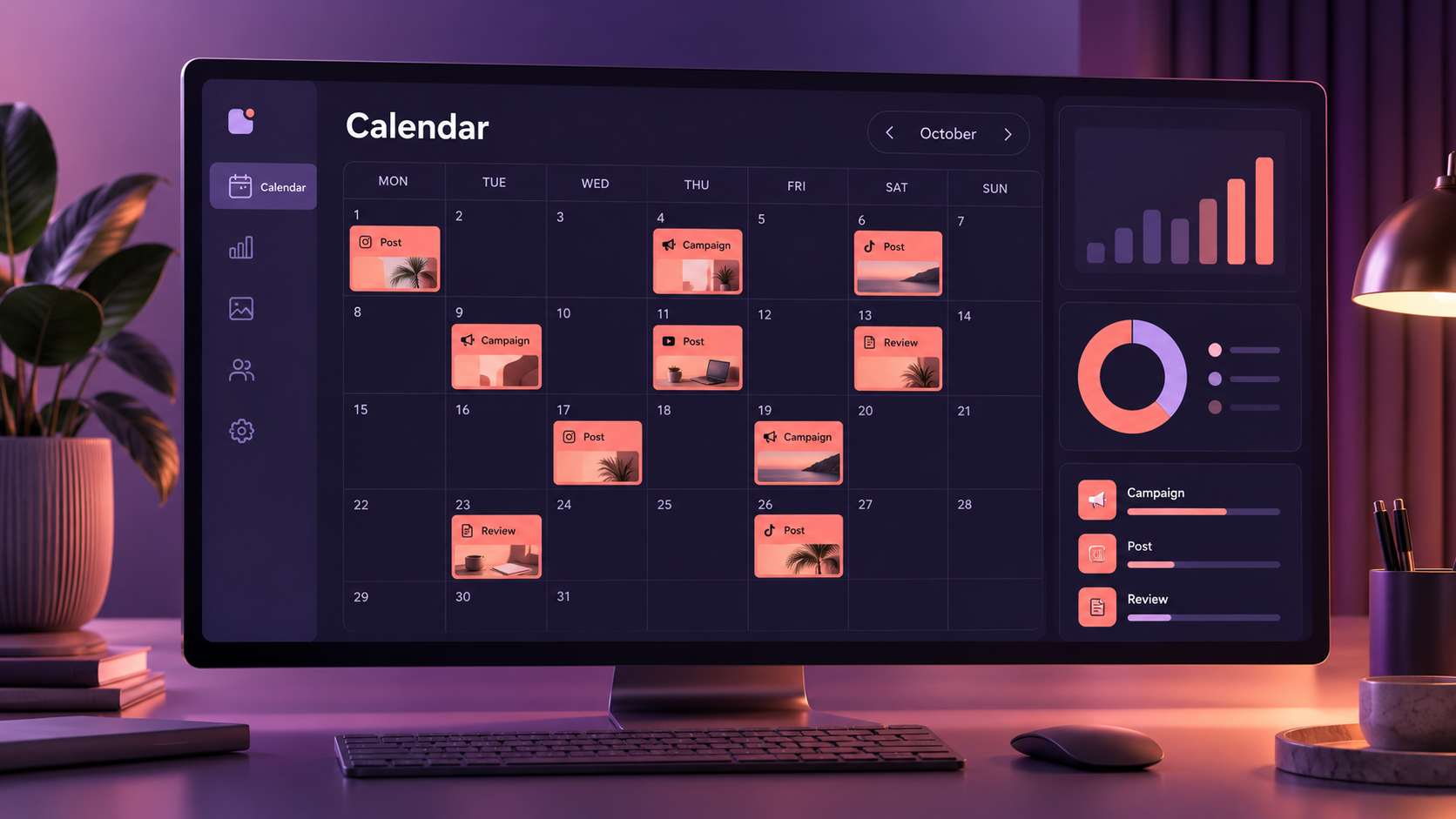
A monthly calendar gives marketers a broader view of campaigns, launches, seasonal moments, and content balance. Use it to see whether one platform is being neglected or whether too many promotional posts are clustered together. Color coding can distinguish educational, entertaining, community-focused, and conversion-oriented content at a glance.
Monthly social media calendar templates are most effective when paired with a separate production view. The monthly sheet shows what will be published, while the production sheet tracks the work needed to create it. This separation keeps the calendar readable without hiding important deadlines.
Campaign-Based Calendar
A campaign template groups posts around a launch, event, promotion, or strategic theme rather than a conventional calendar month. It should include the campaign phase, such as teaser, announcement, education, proof, urgency, and follow-up. This makes it easier to build a coherent story instead of publishing disconnected promotional messages.
Campaign calendars are especially valuable for product launches and lead-generation initiatives. Add fields for the offer, landing page, tracking parameters, creative variation, target segment, and expected action. After the campaign, compare results by message and format to identify which combinations deserve to be reused.
Multi-Platform Content Calendar
A multi-platform template is designed for teams that adapt one core idea for several networks. Rather than copying identical posts everywhere, use a parent-content field to connect related assets. One webinar, for example, might become a LinkedIn document post, several short videos, an Instagram carousel, a discussion prompt, and a series of Stories.
Add separate columns for platform-specific captions, dimensions, publication times, and calls to action. This preserves a consistent campaign message while allowing each version to match the behavior and expectations of its channel.
How to Build a Social Media Calendar Spreadsheet
A spreadsheet is one of the most flexible planning tools because it is easy to duplicate, filter, share, and customize. A well-designed social media calendar spreadsheet can support a solo creator, an in-house marketing department, or an agency managing multiple accounts without requiring specialized project-management software.
Begin with a master planning tab. Create one row for each post and use consistent columns for publication date, time, channel, content pillar, format, campaign, caption, asset link, call to action, owner, approver, and status. Freeze the header row, enable filters, and keep one data type in each column so that sorting remains reliable.
Use drop-down lists for fields with recurring options. Platform, format, owner, priority, and status should not rely on manually typed values because small differences—such as “In review” and “Review”—make filtering less accurate. A controlled list keeps the document clean and makes dashboards easier to build.
Next, apply conditional formatting to communicate urgency. Drafts approaching their deadline can turn amber, overdue items can turn red, and scheduled posts can turn green. Use restrained colors with clear meanings; too many shades make the spreadsheet harder to interpret. Include written status labels as well so that color is not the only indicator.
Create additional tabs only when they have a defined purpose. A strong workbook might contain a master calendar, an ideas backlog, a campaign overview, a reusable asset library, and a performance tracker. The ideas tab can capture rough concepts without cluttering the approved schedule. The asset library can store evergreen links, brand resources, hashtags, disclaimers, and calls to action.
For recurring content, add formulas or duplicate a clean set of rows at the start of each month. Templates for weekly series, customer stories, product demonstrations, and community questions reduce repetitive setup. Before duplicating anything, remove old captions, links, approval notes, and tracking codes to avoid accidentally republishing outdated information.
Protect formula cells and reference tables if several people edit the file. Team members should be able to update captions and statuses without breaking validation rules or dashboard calculations. Assign one calendar owner to maintain the structure, archive completed periods, and resolve inconsistencies.


Free and Downloadable Calendar Formats Worth Using
A free social media calendar template is useful when it saves setup time while remaining easy to adapt. The format matters as much as the design, so choose a file type based on how the calendar will be used rather than how attractive the preview looks.
Google Sheets Templates
Google Sheets is a practical choice for collaborative teams. Multiple contributors can update the calendar, add comments, and review changes without exchanging new file versions. It also supports filters, validation lists, formulas, protected ranges, and links to cloud-based creative assets.
Use separate filter views when different people need different perspectives. A designer may want to see posts with missing visuals, while an approver needs items awaiting review. Filter views let both people work from the same source of truth without rearranging the sheet for everyone else.
Excel Calendar Spreadsheets
Excel is suitable for marketers who need powerful formulas, pivot tables, offline access, or complex reporting. It can combine editorial planning and performance analysis in one workbook, although large workbooks require disciplined naming and version control when shared outside a centralized environment.
For portability, save an untouched master file and create a working copy for each quarter or client. Include a short instructions tab explaining status definitions, color rules, and required fields. This makes the template easier to hand over and reduces onboarding time.
Printable PDF Calendars
Printable calendars work best as high-level planning aids. They are useful for workshops, campaign mapping sessions, studio walls, and weekly review meetings. Because they cannot be filtered or updated dynamically, they should complement a digital schedule rather than replace it.
A printable monthly view can show major campaigns, production days, launches, and seasonal events. Keep detailed captions, asset links, and approval records in the main spreadsheet or scheduling platform.
CSV and Import-Ready Files
CSV files are helpful when moving scheduled content between systems. They are lightweight and widely supported, but they do not preserve formatting, formulas, comments, or multiple tabs. Treat CSV as a transfer format rather than the primary planning workspace.
Before importing downloadable social media calendars, verify the required date format, time zone, platform names, and mandatory columns. Test a few non-critical posts first. A small trial can reveal problems with line breaks, special characters, links, or scheduled times before they affect an entire campaign.
How to Customize an Editable Social Media Calendar
A template becomes valuable when it reflects your content strategy. Begin by defining three to six content pillars that represent the subjects your brand should consistently discuss. Examples might include education, product use cases, customer results, industry commentary, company culture, and community conversation.
Add a content-pillar column and review the monthly mix. If nearly every post is promotional, the imbalance becomes visible immediately. You can then add educational or trust-building content before the schedule is approved. The same process helps identify neglected products, audience segments, or stages of the customer journey.
Customize the calendar around production lead times. A text post may need one day, while a customer interview or multi-scene video may require several weeks. Add separate deadlines for the brief, draft, design, review, revision, and final scheduling. Planning backward from the publication date makes bottlenecks easier to prevent.
Define a small number of clear statuses. A practical workflow might use Idea, Briefed, In Production, In Review, Approved, Scheduled, Published, and Repurpose. Every status should describe a distinct stage and imply the next action. Avoid vague labels such as “Ongoing,” which do not tell the team what remains to be done.
Finally, add fields that support learning. Record the content hook, creative angle, call to action, and primary goal before publication. Later, add reach, engagement, clicks, leads, saves, or watch time. This creates a searchable record of what was tested and what worked, turning the calendar into a strategic knowledge base.
Turning the Calendar into a Reliable Scheduling System
A calendar only improves execution when the team uses it consistently. Establish a repeatable planning rhythm: review ideas monthly, confirm the following week’s content several days in advance, and check scheduled posts before they go live. This cadence gives creative work enough time while preserving space for timely opportunities.
Assign ownership at both the post and process level. Each post needs one person responsible for moving it forward, even when several specialists contribute. The overall calendar also needs an owner who checks incomplete fields, follows up on approvals, and confirms that scheduling matches the agreed plan.
Connect planning to batch production. Group similar tasks such as writing captions, filming short videos, designing carousels, or scheduling approved posts. Batch work reduces context switching and makes content output more predictable. Your calendar can support this by including production dates in addition to publication dates.
Build in flexibility rather than filling every slot. Keep a small percentage of the schedule open for news, trends, community responses, and unexpected business updates. Evergreen backup posts are also useful when an asset is delayed or a planned message becomes inappropriate because of current events.
Review results at least monthly. Compare planned goals with actual outcomes, then identify patterns by platform, topic, format, hook, and call to action. Do not judge every post by the same metric: an educational carousel may be designed for saves, while a product demonstration may be intended to generate clicks or inquiries.
Once the process is stable, connect the calendar to a social media scheduling tool. The spreadsheet should remain the strategic source of truth, while the scheduler handles publication. Before scheduling, confirm the account, date, time zone, media format, caption, link, tags, and platform-specific settings. A short final checklist prevents avoidable errors.
Common Calendar Mistakes to Avoid
The most common mistake is overengineering the template. A calendar with dozens of mandatory fields may look sophisticated but quickly becomes outdated when contributors find it too slow to maintain. Make essential fields mandatory and treat additional strategic details as optional until the team develops a consistent habit.
Another problem is planning without production capacity. Publishing five videos a week may appear reasonable in a calendar, but the schedule will fail if the team can only edit two. Estimate the effort required for each format and plan according to available writing, design, filming, review, and approval time.
Teams also lose efficiency when they use several competing calendars. If campaign plans, captions, and publication dates live in different documents, discrepancies become inevitable. Choose one master calendar and link out to briefs, asset folders, and analytics reports instead of duplicating critical information.
Finally, avoid treating published posts as finished and forgotten. Update the row with the live URL and relevant performance data. Mark strong posts for repurposing, record why weaker posts may have underperformed, and carry useful insights into the next planning cycle.
Frequently Asked Questions
What is the best format for a social media content calendar?
A shared spreadsheet is the best starting format for most creators and marketing teams because it is flexible, familiar, and easy to filter. Use a weekly layout for fast-moving content, a monthly view for campaign balance, and a row-based master sheet when you need detailed production and approval tracking.
What should a free social media calendar template include?
It should include publication date and time, platform, format, topic, caption, asset link, campaign, owner, status, and call to action. Useful templates also provide drop-down lists, filters, instructions, and a separate ideas backlog without forcing users to keep unnecessary fields.
How far in advance should social media posts be planned?
Most teams benefit from planning themes and campaigns one to three months ahead while finalizing individual posts one to four weeks before publication. Keep part of the calendar flexible for timely content. Complex videos, partnerships, and launches usually require longer lead times than simple text or image posts.
How often should a social media calendar be updated?
Update statuses whenever work progresses and review the calendar at least once a week. Conduct a deeper monthly review to assess content balance, campaign results, workload, and upcoming priorities. After publication, add live links and performance data so the calendar remains useful for reporting and repurposing.